


¡Hola, profes! Tell me if this has ever happened to you: You tell someone that you’re a Spanish teacher. That person chuckles and says, “You know, I took x number of years of Spanish in high school and I can’t speak it at all!” Does hearing that make you a little upset? Sad? I know that’s how I feel!
Wouldn’t it be great if our students left our classrooms able to hold a conversation in Spanish? Sure, they will likely make mistakes, but wouldn’t it be AMAZING if our students could communicate with Spanish-speakers and you NEVER had to hear, years down the line, how they are unable to use Spanish at all?
Me too, profe. Me too.
The truth of the matter is, if this is what we want our students to be able to do, our students have to regularly practice holding conversations in the target language. Not only is this excellent preparation for students who will go on to take the AP Spanish Language and Culture exam, but it will also help all students successfully use Spanish outside of our classrooms in real-world settings. I can’t think of a Spanish teacher who wouldn’t want that!
Of course, you can (and probably already do) have your students converse with each other in Spanish whenever possible. And this is wonderful practice for students and I’m not at all advocating for getting rid of these kinds of activities. However, when students are only speaking to each other, it can be difficult for teachers to get a truly accurate picture of how well the students are able to hold a conversation in Spanish, where their strengths and weaknesses lie, and how you can help them improve.
The thought of having personal, individual conversations with each student in your class can be daunting. It’s time-consuming, requires you to prepare something extra for the other students to work on, and, if we’re honest, some classes do not do well with too much unstructured time. Maybe holding one-on-one conversations just isn’t going to work for you in your classroom.
But there’s a better way!
Let technology be your friend! I know that there are mixed feelings about using technology in the classroom, but in this case, it will make your life easier and will allow you to get a clear snapshot of your students’ speaking abilities. Here are some websites and apps that you can use to record your students as they speak Spanish.
Some important notes: Before using any of these sites or apps, I HIGHLY recommend that you record your questions/simulated conversation prompts in advance. Having a pre-recorded audio file will make the process run so much more smoothly – and it will provide a uniform experience for all your students, no matter what class period they’re in, or if they’re absent, etc. Make sure to build in pauses between questions/prompts in which students can respond! I usually leave 20-30 seconds. If you can play some kind of chime or make some kind of noise to indicate the beginning and end of that window, even better!
Don’t have time to record? I’ve got you covered! Check out my collection of speaking assessments here!
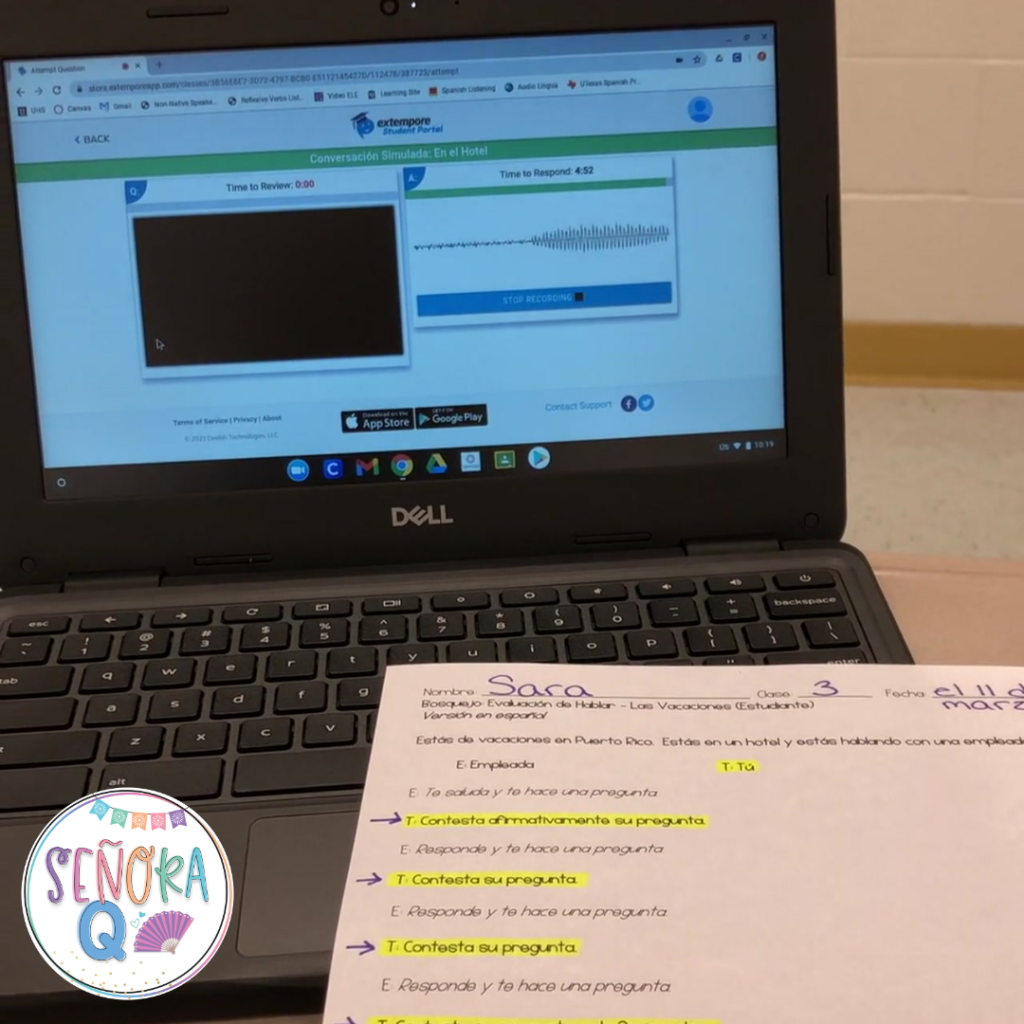
I mentioned this in my post about AP-test prep, but I always provide my students with an outline to help them through simulated conversations. I have found this to be such a helpful scaffolding tool, especially for students in lower-level classes! Here is an example of an outline I’d give my students:

Extempore allows you to ask your students questions verbally or in writing and have them respond right on the site. This is great because you can ask students individual questions if you like, or you can have them complete a full simulated conversation by uploading a continuous audio file. You can create a limited number of assessments for free before having to purchase a plan. Check out my video tutorial below to see more!
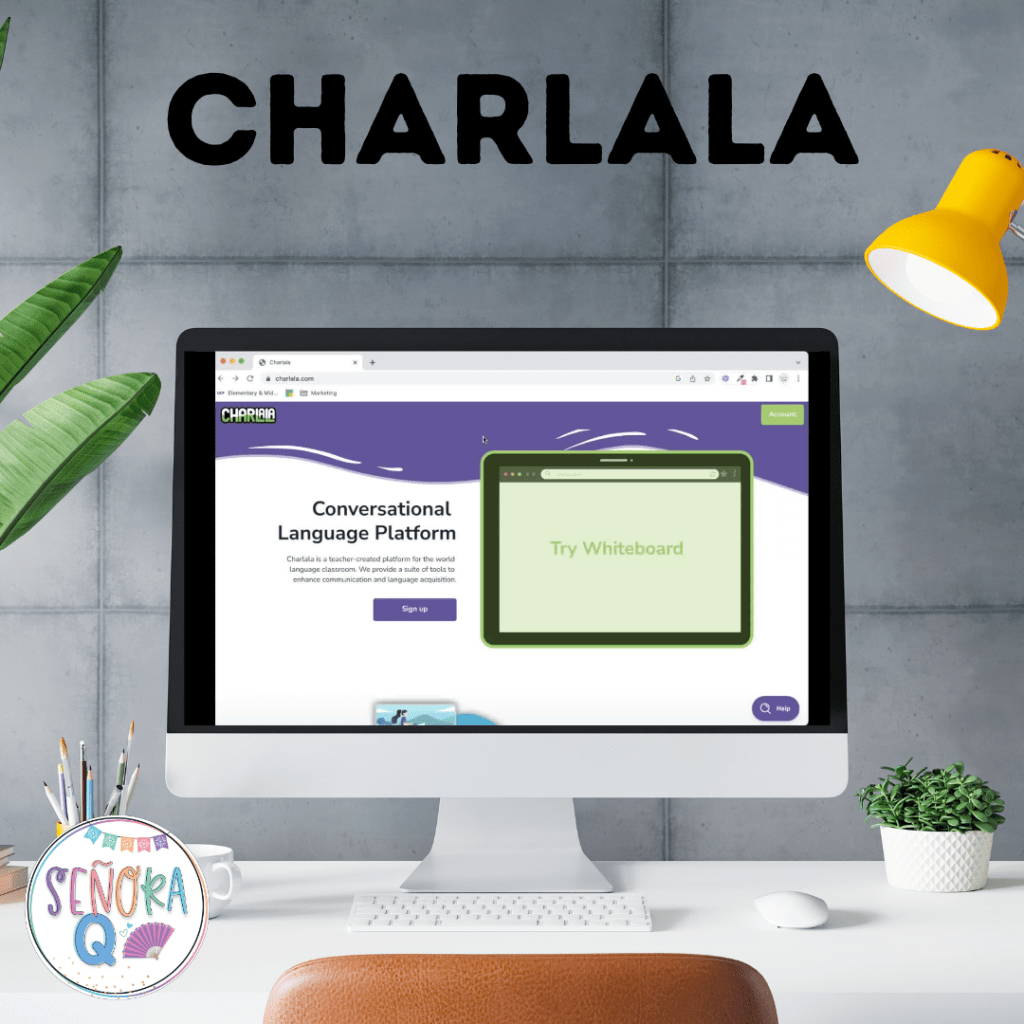
Charlala has a lot of cool features, one of them being the ability to record your students speaking Spanish! Like Extempore, you can create a few assessments for free. Here’s a video demo to show you how you can use Charlala to record your students speaking in Spanish in your classroom:
#3 Voice Memos App (iPads/iPhones/Mac computers)
If your school provides Apple devices to your students (or if your students bring their own), the Voice Memos app is great to record students! This app should come standard on any Apple device.
Here’s how I use this app to record students:
- Have students open the app on their iPads/iPhones/Mac computers. Make sure that students have their volume turned up.
- When everyone is ready, have students press the “Record” button on their devices.
- From your computer, play the recording of your questions/simulated conversation prompts loud enough so that everyone in the room can hear it clearly.
- After the recording is over and students have answered the questions/responded to the prompts, have students hit the “Record” button again to stop.
- Ask students to rename their recordings with their names and the date – this will make things so much easier for you to organize!
- Have students share their recordings with you in whatever way is most convenient – email, upload the file to your LMS, even AirDrop!
#4 Chromebook Camera
If your students use Chromebooks, it’s super easy to use the Camera app to record your students speaking in Spanish! Follow these steps:
- Have students open the Camera app on their Chromebooks. Make sure students have the “Video” option selected and their volume turned up.
- When everyone is ready, have students press the “Record” button.
- From your computer, play the recording of your questions/simulated conversation prompts loud enough so that everyone in the room can hear it clearly.
- After the recording is over and students have answered the questions/responded to the prompts, have students hit the “Record” button again to stop.
- Ask students to title their recordings with their names and the date and save the recordings to their Chromebooks and/or to their Google Drive accounts.
- Have students share their recordings with you in whatever way is most convenient – email, upload the file to your LMS, or share via Google!
Live Language Lab is what we use in my school to record students and, unfortunately, it is not free. However, if your school or department has the budget for it, this can be a wonderful tool to record your students’ spoken Spanish. My favorite part about it is that, once students are logged in, YOU have control over their activity on the platform – you can push out audios, start and stop them, save and close files, and more. No more students forgetting to press record, saving audios to the wrong place, or any other number of technical issues that can arise.
Here’s a little demo video if you are interested in this platform!
Bonus: Canvas (if that is your school’s LMS)
Canvas makes it super easy to record your students! Full disclosure: Other LMS platforms (Schoology, Google Classroom, etc.) may have the same or similar capabilities, but I am not familiar with them. However, if you use another LMS and you know that you can have students submit a recording for an assignment, go for it!
Here’s how you can record students on Canvas:
- Create an assignment. Name is whatever you like and add the description and other parameters.
- Under “Submission Type,” select “Media Recording.”
- When you are ready to record your students, have them log in to Canvas and open the assignment.
- Students should click on, “Start Assignment.” From there, students should click, “Record / Upload Media.” The “Record” tab should be the default, but if it isn’t, students can click on that tab at the top of the window. Students can select their microphone input and can turn the webcam on and off, as you prefer.
- When everyone is ready, have students press the “Start” button on the “Record / Upload Media” window. Keep in mind that recording does not start right away; there is a 3-second countdown.
- From your computer, play the recording of your questions/simulated conversation prompts loud enough so that everyone in the room can hear it clearly.
- After the recording is over and students have answered the questions/responded to the prompts, have students hit the “Finish” button to stop.
- Have students submit their recordings, and they will be saved to your LMS for you to listen to whenever you are ready!
Here’s a quick video demo to walk you through it:

If you are interested in the audio you heard about the family in the tutorial videos, you can grab it here!
Thank you so much for reading – I hope this was helpful! Do you have a favorite site or app for recording your students Speaking Spanish? Are there any tools that you would add to this list? If so, I’d love to know about them! Leave me a comment below. ¡Hasta pronto!
 Señora Q